Sections Keyword Search
Manual informationKeyword Search
1.1 | August 23, 2021 | Rebranded adhering to the latest Conduent brand central documentation standards/guidelines. | Technical Writer
Document conventions
Convention | Explanation |
|---|---|
Bold | For file names, commands, fields, menus, options, and window names. |
Courier New | Commands as you should type them. |
Lucida Console | Example output generated by the system. |
Italics | For configuration variables, including variable portions of file names and URLs. Also indicates a document name. |
Note / Blue Callout | The Blue Callout text indicates information that is of special interest or importance, an idea that could be useful or additional information about a product or a feature. |
| The Caution icon along with the text indicates actions that can lead to problems in system operation or configuration settings if the instructions are not followed properly. |

Revision history
This section tracks the initial creation of the document after each major version thereafter.
Ver: | Date | Description | Reviewed / Approved By |
|---|---|---|---|
1.0 | Feb 28, 2020 | Initial Version | Team |
1.1 | August 23, 2021 | Rebranded adhering to the latest Conduent brand central documentation standards/guidelines. | Technical Writer |
Viewpoint Keyword Search#
Background and dtSearch Options#
Viewpoint uses dtSearch to handle keyword search within the application. Keyword searches use the dtSearch indexes that are created when the project data is indexed in the Viewpoint Processing application. By default, the metadata of files are not indexed. However, there are processing options, which are outlined in the Viewpoint Processing Manual that describes how some metadata fields can be indexed and made searchable.
If the text rendering of an already indexed file is updated or changed during a project, the file needs to be re-indexed and an Update Post performed before the new text will be searchable in the application.
Certain characters are not indexed under default conditions and are treated either as a space or as another search operator to perform the advanced searches. These non-indexed characters are:
!"#$&'()*+,./:;<=>? [\5c]^`{|}~- \09\0a\0c\0d
Some non-indexed characters can be indexed by editing an .abc file and removing the character from the “Spaces” section and then adding the character four times in the “Letters” section to match the formatting of the other characters. The UNC file path to the modified .abc file needs to be added to the indexing option labeled, “Alphabet File (ABC) for DTSearch Indexing” in order for the modified .abc file to be used instead of the built-in, default .abc file. The data needs to be re-indexed with the modified .abc file, if you wish to have the newly added character(s) available for searching across the project. A default .abc can be found on the Viewpoint Support portal.
Keyword Search within the Viewpoint#
There are multiple places within the Viewpoint where keyword searches of the dtSearch index can be performed.
Processing Application#
- Index tab
- At the top of the tab there is an area to perform basic keyword searches. This is often used in troubleshooting or quickly testing search terms without the data first needing to be posted to the Review application.
- Early Filter module
- The Early Filter module contains a Search Terms tab that is used to search indexed data for the purposes of filtering out data before it is posted to the Review application. More information about the Early Filter module is available in the Viewpoint Processing Manual.
Review Application#
- Keyword Search Panel
- This panel allows searches to be done on the currently displayed View. Keyword hits when searching from this panel will populate the Extended Hit List field until the View is closed or switched to another View.
- View Manager
- In View Manager, the Search Terms tab is where searches can be performed against a selected View(s) or Scope(s).
- The results of analyzing search terms in the View Manager do not take into account any other filters used in the other View Manager tabs. Because of this, it is possible that not all the hits displayed in the Search Terms tab will be included in the View after it is built.
- Global Search
- Global search is a quick way to provide limited, but meaningful access to the View Manager in order to run searches, apply filters and build Views. The Search Terms tab functions the same as in the full View Manager.
- Current View Search
- Current View search is a quick way to provide limited, but meaningful access to the View Manager in order to run searches, apply filters and build Views based off of the currently displayed View. The Search Terms tab functions the same as in the full View Manager.
Search Syntax#
Wildcard Search#
Operator | Example | Meaning |
|---|---|---|
? | Bend?r | Matches any single character (use as a single value wildcard). |
= | === == ==== | Matches any single digit (use as a single digit wildcard). |
* | App* | Matches any number of characters (use as one or more wildcards). |
~~ | 2015~~2017 | Matches a numeric range. |
Boolean Search#
A "Boolean" search request consists of a group of words, phrases, or macros linked by connectors such as AND OR that indicate the relationship between them.
Operator | Example | Meaning |
|---|---|---|
And | Philip and Leela | Both words must be present. |
Or | Zapp or Leela | Either word can be present. |
andany | Amy andany Nibbler or Kif | Amy must appear in the document. Nibbler and Kif, if present, will be counted as hits for the document. |
and not | Amy and not Kif | Only Amy must be present. Kif must not be present. |
w/ | Fry w/5 Leela | Fry must occur within 5 words of Leela. |
not w/ | Fry not w/5 Leela | Fry must occur, but not within 5 words of Leela. |
w/ xfirstword | Express w/5 xfirstword | Express must occur in the first 5 words. |
w/ xlastword | Express w/5 xlastword | Express must occur in the last 5 words. |
pre/ | Bender pre/5 Rodriguez | Bender must occur within 5 words before Rodriguez. |
Special Characters#
There are a few characters that, when used in conjunction with search terms, can provide functionality that can save time and help to shorten complex search terms. These options are accessible either by adding a special character to a search term described in the following table or through the Search Options Dialog, which is accessible by right-clicking the main table in the Search Terms tab of the View Manager.
Operator | Example | Meaning |
|---|---|---|
% | B%%der | Fuzzy Search |
# | #sanderson | Phonic Search |
~ | Apply~ | Stemming Search |
& | talk& | Synonym Search |
Fuzzy Search#
- Fuzzy searching uses a proprietary algorithm to find search terms even if they are spelled slightly differently or misspelled. Fuzzy searching can be useful when you are searching text that may contain typographical errors, or for text that has been scanned using optical character recognition (OCR).
- The fuzzy search default is to locate the first couple of letters in a word, and then to look for deviations in letters beyond that.
- Because fuzzy searching looks for deviations in any characters relative to a search request, it works for all international languages, without distinction.
- Search fuzziness adjusts from 1 to 10 from the Search Options Dialog. A search for alphabet with a fuzziness of 1 would find alphaqet; with a fuzziness of 3, it would find both alphaqet and alpkaqet.
- Add fuzziness selectively using the % character. The number of % characters you add determines the number of differences dtSearch will ignore when searching for a word. The position of the % characters determines how many letters at the start of the word have to match exactly. Examples:
- Be%der Word must begin with be and have at most one difference between it and der
- B%%der Word must begin with b and have at most two differences between it and der
Phonic Search#
- Phonic searching looks for a word that sounds like the word you are searching for and begins with the same letter.
- To use phonetic search put a # in front of the word in your search term. Examples:
- #smith Will find Smith, Smithe and Smythe
- #sanderson Will find Sanderson and Sandersen
Note: Phonic searching can be performed for all search terms, however it is somewhat slower than other types of searching and tends to make searches over inclusive. It is usually best to target individual words with the # character rather than use the option across all terms.
Stemming Search#
- Stemming extends a search to cover grammatical variations on a word.
- To enable stemming for a single term add a ~ at the end of words. Examples:
- apply~ Will find applied, applying and applies
- fish~ Will find fishing, fishes and fished
- Stemming does not slow searches noticeably and is frequently helpful in making sure you find what you want.
- The stemming rules included with dtSearch are designed to work with the English language, however foreign language extension packs are available.
Synonym Search#
- Synonym searching finds synonyms of the search term.
- To enable synonym searching add the & character after words in your search term. Examples:
- quick& Will find fast, rapid and prompt
- dtSearch provides two ways to perform synonym searching, which is selected in the Synonym Libraries section in the Search Options Dialog:
- Check WordNet Synonyms to find synonyms using the WordNet concept network included with dtSearch. This is the default option.
- Check WordNet Related Word to find related words from the WordNet concept network.
Note: When analyzing a term with synonym searching turned on, if a synonym contains more than one word, each word is shown as a separate entry. For example, per word.net "good" is a synonym of "in force". In the analytic search results, "in" and "force" are treated as separate entries. However, this does not affect the results of the View; highlighting indicates that only docs with the phrase "in force" are treated as hits.
Regular Expressions#
Searching in Viewpoint can also make use of regular expressions, which begins with double hashes and must be enclosed by double quotation marks (ex. "##201[0-9]").
For specific information about regular expression syntax and limitations in dtSearch, please refer to this dtSearch support page: https://support.dtsearch.com/webhelp/dtsearch/regular_.htm.
Note: Regular expressions in dtSearch can’t contain an empty space or another character that is interpreted as a word break. You will need to use one regular expression for each word or term you are trying to match. Also, be aware that curly quotes will cause the regular expression to fail. Use straight quotes at all times.
Grouping Terms and use of Quotation Marks#
Parentheses#
If you use more than one connector, you should use parentheses to indicate precisely what you want to search for. For example, space and ship or planet express could mean (space and ship) or planet express, or it could mean space and (ship or planet express).
When using the W/N connector as part of a complex search term, at least one of the sides separated by the W/N connector must be a single word, phrase or groups of words or phrases connected by OR. For Example:
- (term1 and term2) w/5 (term3 or term4)
Also, some combinations of complex search terms using the W/N connector will produce ambiguous results and should be avoided. For Example:
- (term1 and term2) w/5 (term3 and term4)
- (term1 w/10 term2) w/5 (term3 and term4)
Quotation Marks#
Quotation marks should only be used to group a search phrase that contains words that would otherwise be interpreted by the application as Boolean search operators, such as AND or OR. Other phrases that do not contain dtSearch Boolean operator words do not need quotation marks. For example:
- "Bender and Fry" – Quotes are used to search the exact phrase
- Leela w/5 Planet Express – Quotes are not needed on Planet Express
Note: Be aware that dtSearch does not recognize curly quotes (“”). If you are copying search terms into the application, verify that only straight quotes ("") are being used.
Spelling Suggestions#
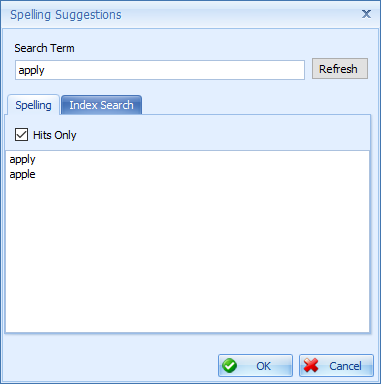
In the Search Terms tab of View Manager there is a Spelling Suggestions feature that can help Reviewers find the right words to use in their list of search terms. To get to it, right-click on a line in the list of search terms, and select Spelling Suggestions. Typing in a term will populate a list of similar words. Checking the Hits Only box, will thin the list down to only words that would have hits in your View source.
The Index Search tab of this window allows users to see a list of words that appear in the index which contain your search term.