
Sections Security Manual
Manual informationSecurity Manual
1.2 | June 1, 2022 | Updated to Viewpoint version 7.4.3 | Team
Document conventions
Convention | Explanation |
|---|---|
Bold | For file names, commands, fields, menus, options, and window names. |
Courier New | Commands as you should type them. |
Lucida Console | Example output generated by the system. |
Italics | For configuration variables, including variable portions of file names and URLs. Also indicates a document name. |
Note / Blue Callout | The Blue Callout text indicates information that is of special interest or importance, an idea that could be useful or additional information about a product or a feature. |
| The Caution icon along with the text indicates actions that can lead to problems in system operation or configuration settings if the instructions are not followed properly. |

Revision history
This section tracks the initial creation of the document after each major version thereafter.
Ver: | Date | Description | Reviewed / Approved By |
|---|---|---|---|
1.0 | Apr 12, 2013 | Initial Version | Team |
1.1 | Sept 13, 2021 | Rebranded adhering to the latest Conduent brand central documentation standards/guidelines. | Technical Writer |
1.2 | June 1, 2022 | Updated to Viewpoint version 7.4.3 | Team |
Viewpoint Security Management#
Opening Security Management#
The Security Management module can be launched from both the Review and Processing applications.
- Review: Select the Security Management button from the Tools menu.
- Processing: Select the Security Management button from the Project tab.
Note: The Processing system and Review systems each have their own unique Security modules. Although both function identically, there is no dependence between the two.
Companies Tab#
The Companies tab is used to manage the list of companies used throughout Viewpoint. Right-clicking inside the left panel gives the user access to several options, specifically the options to create new company records, delete company records, export the list to Excel, or view the Security Access to the selected company.
The Properties panel on the right displays the properties of a selected company. These fields can be clicked on and edited by the user. The Test Connection field can be clicked on to test the impersonation credentials.
Note: Impersonation is only available in Security Management in the Review application, not the Processing application.

Security Access#
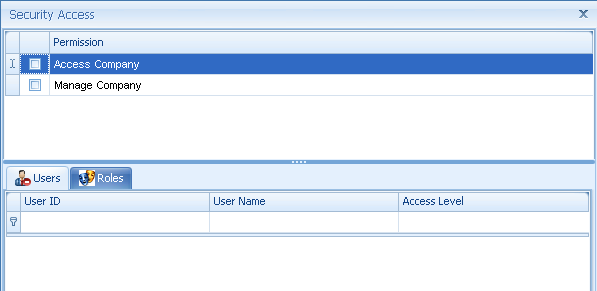
Security Access is a way to quickly see which users and roles have permissions to access the selected object. This right-click option can also be found in the main project grids of the Processing and Review applications, in the View Manager, and in the Reports module.
Roles Tab#
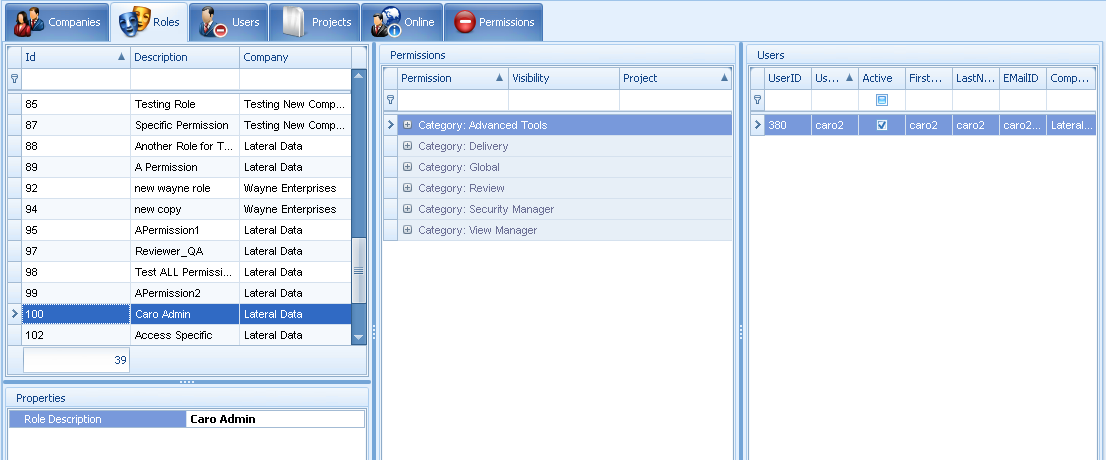
The Roles tab is used to create and manage the various groups of users within Viewpoint. The permissions a role is granted is also managed here.
Roles Panel#
The main panel in the upper-left displays the list of Roles within Viewpoint. Right-clicking inside this panel displays several options. From the right-click menu, the user can create a new Role, delete the selected Role, export the list to Excel, or view the security access to the selected Role. There is also an option to copy a Role. This allows the user create a new Role with the same permissions as the Role it is copied from. The users assigned to the Role being copied are not assigned to the new Role.
Properties Panel#
Below the Roles panel is the Properties panel. Users can edit the Role Description by clicking in the field and typing.
Permissions Panel#
To the right of the Roles panel is the Permissions window. Here, the user can add or delete permissions for each role. To add permission(s), select the role to be modified, right-click inside the panel and select New. This will display the Add Permissions Wizard. To delete permission(s), simply right-click the desired permission(s) and select Delete.
Add Permissions Wizard#
For a description of all permissions, please see the Permission Description table at the end of this manual.
To add a permission(s) to a specific role:
- Select the desired permission(s) from the list provided. Use the Shift and/or CTRL keys to select multiple permissions at once.
- Click Next.
- Select the appropriate company and click Next. You can also leave this field blank to create a Global permission.
- Click the check box to limit the selected permission(s) to specific project(s). Otherwise, leaving it blank will add the permission(s) to all projects. Click Next.
- Select the desired project(s) and click Next. Use the Shift and/or CTRL keys to select multiple Projects at once.
- Click Finish to complete the wizard and add the permission(s) to the selected role.
Users Panel#
To the right of the Permissions panel is the Users panel. From here, the user can see and manage the list of users that are members of the selected Role. Right-clicking in this panel allows the user to add another user to the Role or delete a user from the Role. There is also a Check In User Documents option that checks in the selected user’s Automation batches for all Projects.
Add Users Wizard#
- To add a user to a specific role, select the desired role, right-click in the Users panel and select New. This will display the Add Users Wizard.
- Check the box of the desired user(s) from the list. Note: Please see the Users Tab section for instructions on setting up new users.
- Click Finish to complete the wizard to add the user(s) to the selected role.
Users Tab#
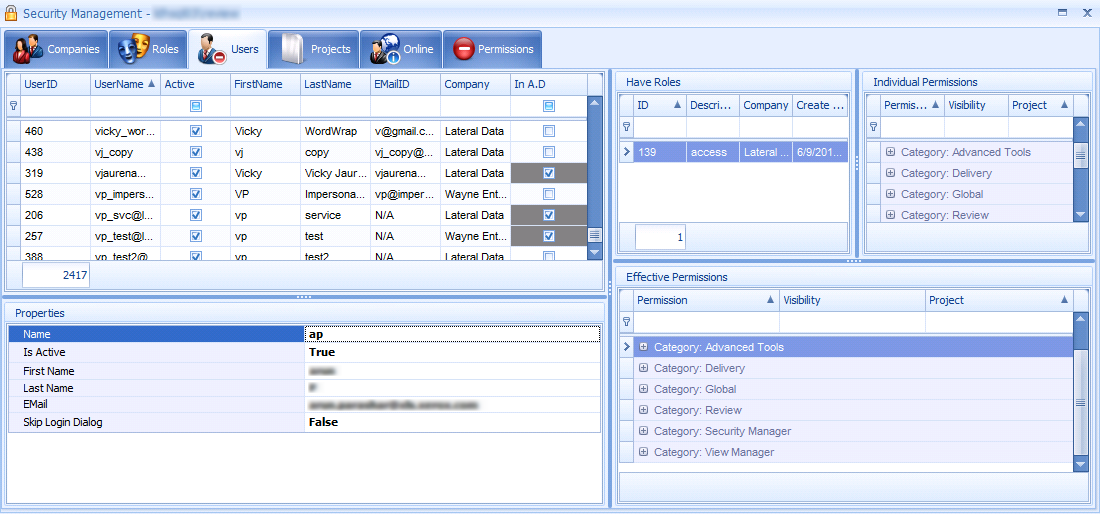
The Users tab is where individual user records are managed. Selecting a record will update the other panels to show the properties, roles and permissions that belong to the user.
Users Panel#
The upper-left panel displays the list of users in Viewpoint. There are a number of right-click options available from this list. The notable right-click options are:
- New – Opens the User Wizard, and walks through the creation of User records
- Update – Opens the User Wizard to modify the User selected in the Users panel
- Delete – Deletes the selected user
- Export to Excel – Exports the contents of the User grid to an Excel file.
- Clear Layout – Clears the selected user’s layout
- Copy Profile From Another User to Selected – Opens another panel to choose which user’s profile is copied to the currently selected user
- Use Selected User’s Profile As Default – Overwrites the default profile with the profile used by the selected user
- Clear Shortcuts – Clears all of the selected user’s shortcuts
- Copy Shortcuts From Another User To Selected – Opens another panel to choose which user’s shortcuts is copied to the currently selected user
- Use Selected User’s Shortcuts As Default – Overwrites the default shortcuts with the shortcuts used by the selected user
- Mark User(s) Active – Changes status of selected user(s) to Active
- Mark User(s) Inactive – Changes status of selected user(s) to Inactive
- Copy User – Opens the User Wizard and copies the Roles and Permissions of the selected user to the new user
- Check In User Documents – Checks in the selected user’s Automation batches for all Projects
User Wizard#
- To create a new user, right-click over the list of users and select New to display the User Wizard.
- Select a Company and click Next.
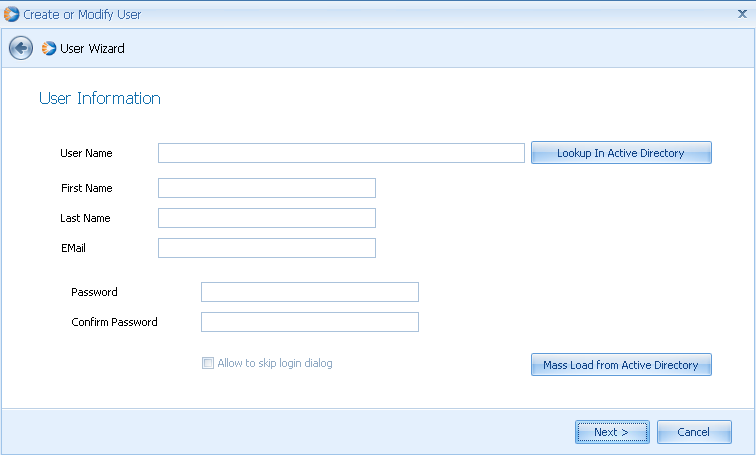
- Fill in user information requested and click Next. For Active Directory users, fill in the User Name field and click Lookup In Active Directory. If the account is found, the remaining fields will automatically populate. Checking the Allow to skip login dialog option will automatically log the user in to the application without displaying the login window first.
Note: To load a list of users at once, click the ‘Mass Load form Active Directory’ button. In the window that pops up, enter a list of users or groups and then hit OK to load into Viewpoint.
- Check the necessary Role(s) and click Next.
- Click Finish to save the changes and add new user to the database.
Note: If the new user already exists in the system, a dialog box will pop up saying that the new user already exists.
Properties Panel#
The following Users is the Properties panel. When you select a user in the user list, their information appears in the Properties panel. Each of the listed fields can be modified by clicking on the field and typing. Changes are saved by clicking outside the field. Notable properties include:
- MS Email – Entering a valid Microsoft email address will invoke Two Factor Authentication when logging into the Viewpoint Web application. See Viewpoint 7.2 2 Factor Authentication Guide for more information.
- Skip Login Dialog – True will not display the Viewpoint login screen, but instead automatically log the user into Viewpoint using the user’s Active Directory credentials provided matching credentials can be found in Viewpoint.
Have Roles Panel#
This panel lists each role that the selected user belongs to. New roles cannot be added from here, but is done by adding the user to the role in the Roles tab.
Individual Permissions Panel#
This panel displays permissions assigned specifically to the selected user. Individual permissions are used to give a specific user greater access without modifying the role he/she belongs to. To create a new individual permission, right-click in the panel and select New. This will open the Add Permissions Wizard, which has already been covered.
Effective Permissions Panel#
This panel lists all permissions assigned to the selected user, including those inherited from assigned roles and specifically granted as individual permissions.
Projects Tab#
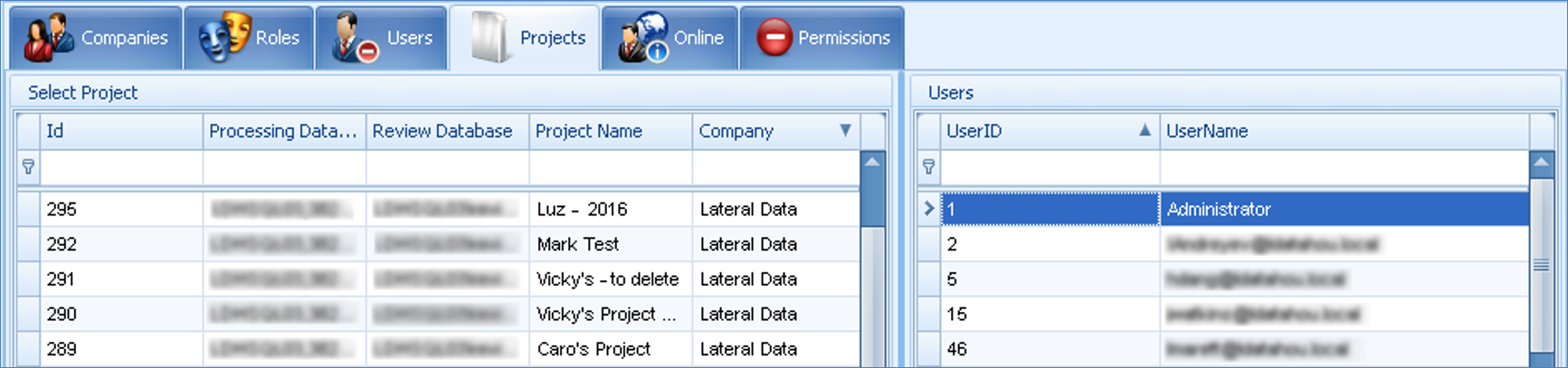
The Projects tab displays all projects and specific users assigned to each project. Projects are created in the Processing system and will automatically populate here once the project has been posted to the Review system. There is also a Check In User Documents option in the right-click menu of the Users panel that checks in the selected user’s Automation batches for all Projects.
Online Tab#
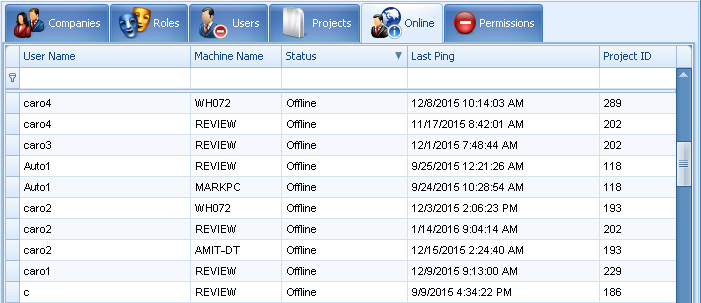
This tab displays the list of users who have logged in, the machine they last logged in from, whether or not they are currently online, the last time the machine was pinged, and the most recent project they accessed.
Note: The Online tab is only available in the Review Application.
Permissions Tab#
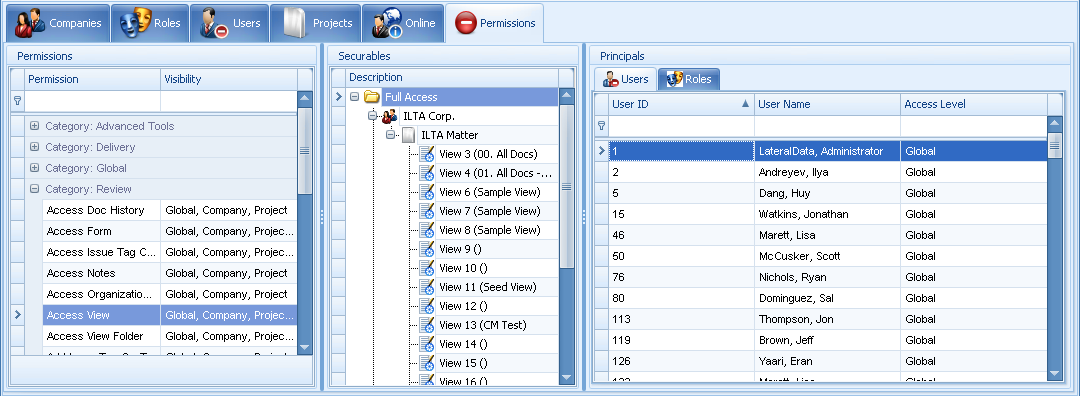
The Permissions tab allows the user to do a reverse lookup of which users have been granted what level of access to the selected security permission. To access this tab, a user must be granted the Securable Lookup permission. The Securable Lookup permission can also be limited to a Company or Project level, and doing so will appropriately limit the information available in the Permissions tab, and the Security Access right-click option throughout Viewpoint.
Permissions Panel#
This panel displays a complete list of all the available Permissions within Viewpoint. Selecting a Permission will populate the other two panels.
Securable’s Panel#
This panel displays an access-level tree. Selecting a level will display the Users and Roles with at least that level of access in the Principals panel. Selecting the Full Access folder will show all users with Global access to that Permission. Expanding that folder will display a list of Companies. Expanding a Company level will display the Projects that fall under that Company. Depending on the selected Permission, the user may have the option to expand further for items such as: Views, View Folder, Forms, Role, or Issue Code Category. Selecting one of these other levels below the Full Access folder will display results with that level of access or greater.
Principals Panel#
This panel has Users tab and Roles tab that displays the complete list of users or roles that have access to the level of permission the user selected in the first two panels.
Security Management Permissions Descriptions Table#
Permission | Description (if off…) | Visibility |
|---|---|---|
Advanced Tools | ||
All Manage CAL (Continuous Active Learning | Disable access to the Continuous Active Learning administration page in the Viewpoint Web application | Global, Company, Project |
All Review CAL (Continuous Active Learning) | Disable access to Continuous Active Learning Process. User can not participate in CAL reviews in the either the Web or Classic applications. | Global, Company, Project |
Allow Stratas | Disable access to the Stratas panel | Global, Company, Project |
Assisted Review | Disable access to Assisted Review | Global, Company, Project |
Build Assisted Redaction | Disable ability to build Assisted Redaction | Global, Company, Project |
Build Concepts | Disable ability to build Concept Analyzer | Global, Company, Project |
Build Email Thread Analyzer | Disable ability to build Email Thread Analyzer | Global, Company, Project |
Build ND Similarity Viewer | Disable ability to build ND Similarity Viewer | Global, Company, Project |
Build Relationships | Disable ability to build Relationship Analyzer | Global, Company, Project |
Concept Analyzer | Disable access to Concept Analyzer | Global, Company, Project |
Email Thread Analyzer | Disable access to Email Thread Analyzer | Global, Company, Project |
ND Similarity Viewer | Disable access to ND Similarity Viewer | Global, Company, Project |
Relationship Analyzer | Disable access to Relationship Analyzer | Global, Company, Project |
Delivery | ||
Delivery | Disable access to Delivery module | Global, Company, Project |
Global | ||
Access Project | Limited access to specific projects | Global, Company, Project |
Access Reports | Disable access to Reports module | Global |
All Viewpoint Web Access | Disable ability to access Viewpoint Web application | Global |
Customize Layout (Review) | Disable ability to add/remove panels | Global, Company, Project |
Customize Reports | Disable ability to customize reports | Global |
Edit Project | Disable ability to update a project | Global, Company |
Manage Custom Fields | Disable ability to create and modify custom fields | Global, Company, Project |
Modify Options (Review) | Disable ability to toggle options | Global, Company, Project |
Import | ||
Access Import Template | Limit access to specific import templates | Global, Company, Project |
Processing | ||
Allow Assign/Un-Assign Workers | Disable ability to assign/un-assign Workers to Projects or users | Global, Company, Project |
Allow Google Drive API Access | Disable ability to use the Google Drive connector | Global, Company, Project |
Allow To Modify Job Settings | Disable ability to modify default job settings | Global, Company, Project |
Allow To Modify Project Settings | Disable ability to modify Project-wide settings | Global, Company, Project |
Catalog and Stage | Disable ability to catalog and stage data | Global, Company, Project |
Clear Workflows | Disable access to the Clear button in the Workflows tab | Global |
Customize Slipsheet Template | Disable access to slipsheet customization feature | Global, Company, Project |
Dedupe | Disable ability to dedupe data | Global, Company, Project |
Edit Custom Fields Data | Disable ability to add, remove and edit custom fields for a document in Processing and QC | Global, Company, Project |
Extract | Disable ability to extract data | Global, Company, Project |
Manage Maintenance Scripts | Disable ability to edit maintenance scripts | Global |
Modify File ID | Disable ability to update any File ID settings. | Global |
Review | ||
Access Doc History | Disable access to Doc History window | Global, Company, Project |
Access Form | Limited visibility to specific Forms | Global, Company, Project, Form |
Access Issue Tag Category | Limited visibility to specific Issue Tag categories | Global, Company, Project, Issue Category |
Access Notes | Disable access to Notes panel, Notes field and ability to filter by Notes in View Manager | Global, Company, Project |
Access Organization Codes | Disable ability to see and assign Organization Codes in the Review window. | Global, Company, Project |
Access View | Disable access to views | Global, Company, Project, View |
Access View Folder | Disable access to view folders | Global, Company, Project, Folder |
Add Issue Tag On-The-Fly | Disable ability to add new issue tag from tag panel | Global, Company, Project |
Advanced Worker Selection | Disable the ability to batch a job to a Worker | Global, Company, Project |
Allow Auto Ingest Data | Disable access to the Viewpoint Web Data Ingestion module | Global, Company, Project |
Allow Bulk Clear Custom Fields | Disable the ability to bulk clear custom fields | Global, Company, Project |
Allow Download Documents, X-ref, Productions, Saving Documents | Disable downloads from Viewpoint Web | Global, Company, Project |
All EMS Management | Disable access to the Entity Management System in the Viewpoint Web application | Global, Company, Project |
Allow Message Board | Disable access to message board | Global, Company, Project |
Allow Override Tagging Rules | Disable ability to bypass normally required tagging requirements | Global, Company, Project |
Allow Portable Review | Disable access to Portable Review feature | Global, Company, Project |
Allow Production Viewers | Disable access to Production Text and Image Viewers | Global, Company, Project |
Allow request document translation | Disable ability to translate documents in the Viewpoint Web application | Global, Company, Project |
Allow Tiff on the Fly | Disable access to tiff on the fly | Global, Company, Project |
Allow Transcription | Disable ability to transcribe audio files in the Viewpoint Web application | Global |
Automated Review User | Disable ability to check out/in views | Global |
Linear Review | Disable access to Review | Global, Company, Project |
Native Redaction | Disable ability to natively redact | Global, Company, Project |
Open Native | Disable access to ‘Open Native’ | Global, Company, Project |
Print Documents | Disable ability to print documents | Global, Company |
Redaction | Disable ability to image redact | Global, Company, Project |
Remove Documents from View | Disable ability to remove documents from views | Global, Company, Project |
Reset Tags | Disable access to Reset options of right-click menu in Documents panel. | Global, Company, Project |
Save Documents | Disable ability to save documents | Global, Company |
Show Admin Widgets | Disable access to the Admin widgets in the Viewpoint Web application | Global |
Show Legal Hold Integration | Disable access to the Legal Hold module in the Viewpoint Web application | Global |
Show Review Manager Widgets | Disable access to the Review Manager widgets in the Viewpoint Web application | Global |
Tag Documents | Disable access to all tagging functionality | Global, Company, Project |
View EMS Entities | Disable access to the EMS panel in Viewpoint Web Review | Global, Company, Project |
Security Manager | ||
Access Company | Limited access to specific companies | Global, Company |
Access Role | Disable access to view roles | Global, Company, Role |
Add Permission | Disable ability to add permissions | Global, Company |
Manage Company | Disable ability to add, edit and remove companies | Global |
Manage Role | Disable ability to add, edit and remove roles | Global, Company, Role |
Manage User | Disable ability to add, edit and remove users | Global, Company |
Securable Lookup | Disable Permissions Tab and Security Access right-click options | Global, Company, Project |
Security Manager | Disable access to Security Manager | Global |
See User | Disable ability to see users | Global, Company |
View Manager | ||
Access Automation Levels | Disable access to Automation Levels window | Global, Company, Project |
Access Forms Manager | Disable access to Forms Manager window | Global, Company, Project |
Access Mass Folders | Disable access to Mass Folders window | Global, Company, Project |
Access Pipes | Disable access to Pipes window | Global, Company, Project |
Access Redaction Labels Manager | Disable access to Redaction Labels Manager window | Global, Company, Project |
Access Scope | Disable access to scopes and documents within | Global, Company, Project |
Access Tag Manager | Disable access to Tag Manager window | Global, Company, Project |
Access View Templates | Disable access to View Templates window | Global, Company, Project |
Allow Domain List Manager | Disable access to Domains Manager | Global |
Allow View Manager Actions | Disable access to Actions menu | Global, Company, Project |
Build View | Disable ability to build views | Global, Company, Project |
Delete View | Disable ability to delete views | Global, Company, Project, View |
Edit View | Disable ability to edit views | Global, Company, Project, View |
Lock/Unlock View | Disable ability to lock and unlock views | Global, Company, Project |
Manage Organization Codes | Disable ability to edit Organization Codes | Global, Company, Project |
Manage System Views | Disable write access to views in system folders | Global, Company, Project |
Manage View Type | Disable ability to create new View Types | Global, Company, Project |
Move View | Disable ability to "Set Folder" | Global, Company, Project |
Rebuild View | Disable ability to rebuild views | Global, Company, Project, View |
View Manager | Disable access to View Manager | Global, Company, Project |
Security Management Suggested Roles#
Permission | Administrator | Project Manager | Reviewer |
|---|---|---|---|
Advanced Tools | |||
Allow Manage CAL (Continuous Active Learning) | X | X | |
Allow Review CAL (Continuous Active Learning) | X | X | X |
Allow Stratas | X | X | |
Assisted Review | X | X | |
Build Assisted Redaction | X | ||
Build Concepts | X | ||
Build Email Thread Analyzer | X | ||
Build ND Similarity Viewer | X | ||
Build Relationships | X | ||
Concept Analyzer | X | X | |
Email Thread Analyzer | X | X | |
ND Similarity Viewer | X | X | |
Relationship Analyzer | X | X | |
Delivery | |||
Delivery | X | ||
Global | |||
Access Project | X | X | X |
Access Reports | X | ||
Allow Viewpoint Web Access | X | X | X |
Customize Layout | X | X | X |
Customize Reports | X | ||
Edit Project | X | ||
Manage Custom Fields | X | X | |
Modify Options | X | X | X |
Import | |||
Access Import Template | X | ||
Processing | |||
Allow To Modify Job Settings | X | ||
Allow To Modify Project Settings | X | ||
Catalog and Stage | X | ||
Clear Workflows | X | ||
Customize Slipsheet Template | X | ||
Dedupe | X | ||
Edit Custom Fields Data | X | ||
Extract | X | ||
Manage Maintenance Scripts | X | ||
Modify File ID | X | ||
Review | |||
Access Doc History | X | X | |
Access Form | X | X | X |
Access Issue Tag Category | X | X | X |
Access Notes | X | X | X |
Access Organization Codes | X | X | |
Access View | X | X | X |
Access View Folder | X | X | X |
Add Issue Tag On-The-Fly | X | X | |
Advanced Worker Selection | X | X | |
Allow Bulk Clear Custom Fields | X | X | |
Allow Download Documents, X-ref, Productions, Saving Documents | X | X | |
Allow EMS Management | X | X | |
Allow Message Board | X | X | X |
Allow Override Tagging Rules | X | ||
Allow Portable Review | X | ||
Allow Production Viewers | X | X | X |
Allow request document translation | X | X | |
Allow Transcription | X | X | |
Automated Review User | X | ||
Linear Review | X | X | X |
Native Redaction | X | X | |
Open Native | X | X | |
Print Documents | X | X | |
Redaction | X | X | |
Remove Documents from View | X | X | |
Reset Tags | X | X | |
Save Documents | X | X | |
Show Admin Widgets | X | X | |
Show Legal Hold Integration | X | X | |
Show Review Manager Widgets | X | X | |
Tag Documents | X | X | X |
Tiff on the Fly | X | X | |
View EMS Entities | X | X | X |
Security Manager | |||
Access Company | X | ||
Access Role | X | ||
Add Permission | X | ||
Manage Company | X | ||
Manage Role | X | ||
Manage User | X | ||
Securable Lookup | X | ||
Security Manager | X | ||
See User | X | ||
View Manager | |||
Access Automation Levels | X | X | |
Access Forms Manager | X | X | |
Access Mass Folders | X | X | |
Access Pipes | X | X | |
Access Redaction Labels Manager | X | X | |
Access Scope | X | X | |
Access Tag Manager | X | X | |
Access View Templates | X | X | |
Allow Domain List Manager | X | ||
Allow View Manager Actions | X | X | |
Build View | X | X | |
Delete View | X | X | |
Edit View | X | X | |
Lock/Unlock View | X | X | |
Manage Organization Codes | X | X | |
Manage System Views | X | X | |
Manage View Type | X | ||
Move View | X | X | |
Rebuild View | X | X | |
View Manager | X | X | |