
Sections CAL Management in Classic
Manual informationCAL Management in Classic
Overview#
Viewpoint 7.7 Classic Review is capable of accessing the CAL (Continuous Active Learning) feature in Viewpoint Web. This is achieved by launching Viewpoint Web directly from Classic Review. This ‘web bridge’ should make managing CAL easier for users who prefer to use Viewpoint Classic.
Viewpoint Web is required. You will also need the Viewpoint Installer to perform the setup. End users will need to be able to access Viewpoint Web.
Process#
- Confirm that Viewpoint Web is functioning properly.
- Verify that Viewpoint Web is accessible from end-user PCs which are running Viewpoint Classic Review.
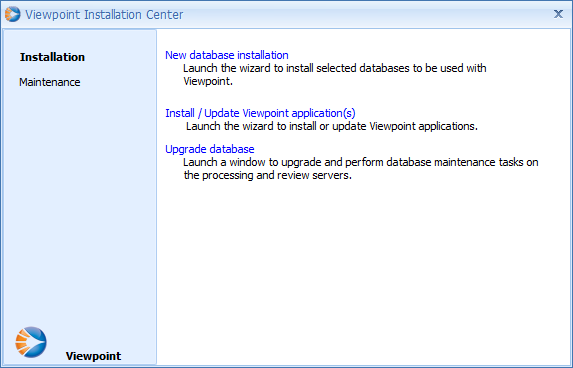
- Open the Viewpoint installer
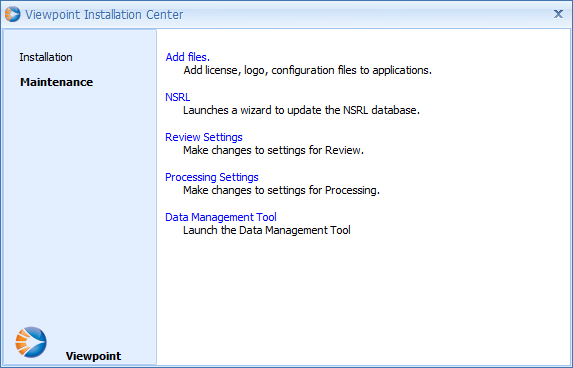
- Click on the Maintenance section, then click on Review Settings
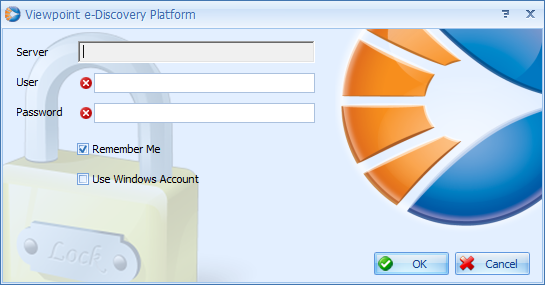
- Enter Viewpoint credentials with administrator-level privilege and click OK
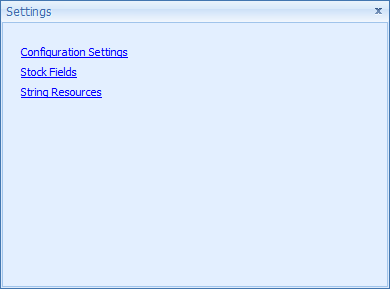
- Once logged in, a new screen will be shown. Click on Configuration Settings
- Under the Review section, locate key Viewpoint Web Base URL
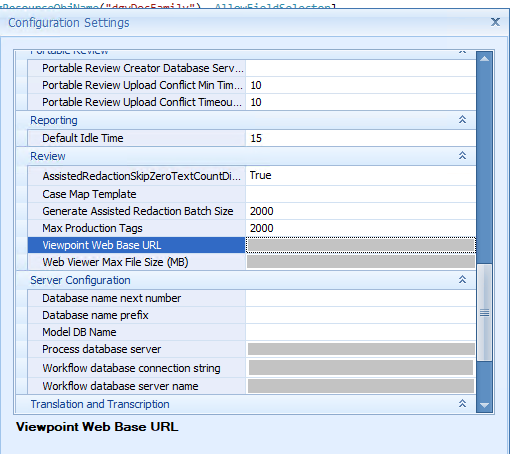
- Populate the Viewpoint Web Base URL value with the URL of the Viewpoint web site – for example https://ViewpointWeb
- Click OK to save your settings. Close the Viewpoint Installer.
Validation
- Open Viewpoint Classic Review and login as a user with permission to access Viewpoint Web and CAL
- From the Dashboard, navigate to the View Manager
- From the View Manager main menu select Tools | Manage CAL
- You will be prompted to log into Viewpoint Web. Once you have logged in you will be taken to the CAL Management page in Viewpoint Web.
- You have completed the integrated CAL Management web bridge setup