
Sections Full and Partial Error Cleanup
Manual informationFull and Partial Error Cleanup
1.1 | August 23, 2021 | Rebranded adhering to the latest Conduent brand central documentation standards/guidelines. | Technical Writer
Document conventions
Convention | Explanation |
|---|---|
Bold | For file names, commands, fields, menus, options, and window names. |
Courier New | Commands as you should type them. |
Lucida Console | Example output generated by the system. |
Italics | For configuration variables, including variable portions of file names and URLs. Also indicates a document name. |
Note / Blue Callout | The Blue Callout text indicates information that is of special interest or importance, an idea that could be useful or additional information about a product or a feature. |
| The Caution icon along with the text indicates actions that can lead to problems in system operation or configuration settings if the instructions are not followed properly. |

Revision history
This section tracks the initial creation of the document after each major version thereafter.
Ver: | Date | Description | Reviewed / Approved By |
|---|---|---|---|
1.0 | Jun 17, 2015 | Initial Version | Team |
1.1 | August 23, 2021 | Rebranded adhering to the latest Conduent brand central documentation standards/guidelines. | Technical Writer |
Error Handling#
The Viewpoint Processing application provides the ability to use scripts to affect how files are handled during processing. The contents of the scripts for the Full Error Cleanup and Partial Error Cleanup options are broken down as shown in the following screen.
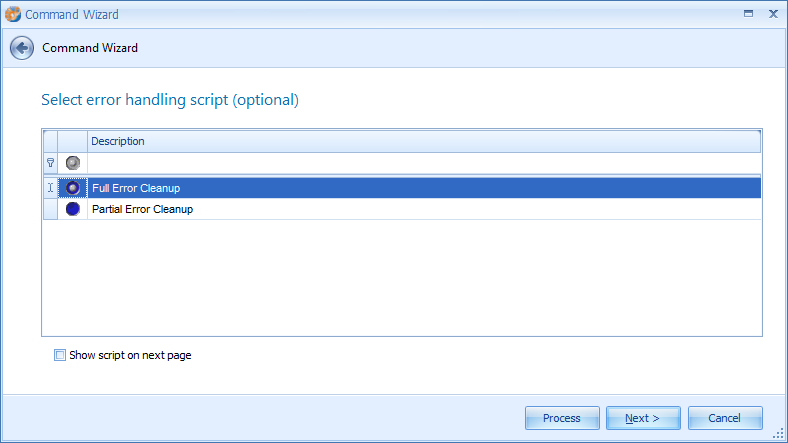
- This optional step is displayed in the Processing Wizard on the screen after the processing options are selected.
- To modify the Scripts, check the “Show script on next page” option and then make changes accordingly.
- To create new scripts, right-click in the panel and select “New.”
Full Error Cleanup#
- If the document is slip-sheeted or ignored already, script will not make any changes.
- If the document is encrypted and Create Text Status is Error, the document will be slip-sheeted.
- If the document is corrupted and Create Text Status is Error, the document will be slip-sheeted.
- If the document is not encrypted or corrupted and Create Text Status is Error, script will exclude the document from indexing and change the Create Text Status to Not Required.
- If the Metadata, Hash, Create HTML or Create TIFF status is Error, the status will be changed to Not Required, regardless of the error.
- If the document is encrypted and Extract Status is Error, the document will be slip-sheeted.
- If the document is encrypted, Extract Status is Error and the document has no text, the document will be slip-sheeted.
- If Extract Status is Error because document has zero files, it will be slip-sheeted.
- If the document has extracted files and Extract Status is Error, Extract Status will be updated to Done.
- If the document has no extracted files and Extract Status is Error, Extract Status will be updated to Not Required.
- If the document is an archive file, it will be slip-sheeted.
Partial Error Cleanup#
- If the document is slipsheeted or ignored already, script will not make any changes.
- If the document is encrypted and Create Text Status is Error, the document will be slipsheeted.
- If the document is corrupted and Create Text Status is Error, the document will be slipsheeted.
- If the document is not encrypted or corrupted and Create Text Status is Error due to OCR, Empty document or lack of processor, Create Text Status will be updated to Not Required.
- If the document is not encrypted or corrupted and Create Text Status is Error due to any other cause, Create Text Status will be updated to Bad.
- If the document is not encrypted or corrupted and Create Text Status is Error, script will exclude the document from indexing.
- If the document is encrypted, Extract Status is Error and the document has no text, the document will be slipsheeted.
- If the document is corrupted, Extract Status is Error and the document has no text, the document will be slipsheeted.
- If Extract Status is Error because document has zero files, it will be slipsheeted.
- If the document has extracted files and Extract Status is Error, Extract Status will be updated to Done.
- If the document is an archive file, it will be slipsheeted.
- If Extract status is Error due to extract is not supported for the document or the document size is less than 1024 bytes, Extract Status will be updated to Not Required.
- If Error is due to any other cause, Extract Status will be updated to Bad.