Sections Portable Review Manual
Manual informationPortable Review Manual
1.1 | September 6, 2021 | Rebranded adhering to the latest Conduent brand central documentation standards/guidelines. | Technical Writer
Document conventions
Convention | Explanation |
|---|---|
Bold | For file names, commands, fields, menus, options, and window names. |
Courier New | Commands as you should type them. |
Lucida Console | Example output generated by the system. |
Italics | For configuration variables, including variable portions of file names and URLs. Also indicates a document name. |
Note / Blue Callout | The Blue Callout text indicates information that is of special interest or importance, an idea that could be useful or additional information about a product or a feature. |
| The Caution icon along with the text indicates actions that can lead to problems in system operation or configuration settings if the instructions are not followed properly. |

Revision history
This section tracks the initial creation of the document after each major version thereafter.
Ver: | Date | Description | Reviewed / Approved By |
|---|---|---|---|
1.0 | Jan 28, 2015 | Initial Version | Team |
1.1 | September 6, 2021 | Rebranded adhering to the latest Conduent brand central documentation standards/guidelines. | Technical Writer |
Getting Started#
Viewpoint Portable Review provides the opportunity to support the remote and/or offline needs of review teams with the same core document review capabilities as the connected version of Viewpoint Review. Using Viewpoint Portable Review a subset of data loaded to a Viewpoint Review database can be downloaded onto a PC/Laptop for use offline. Using the remote Portable Review application, users can continue to review and apply work product as they are accustomed and then synchronize their work product back to the main database on their return.
Portable Review does not allow for the utilization of Viewpoint Assisted Review, Delivery, Security Management or Reports; however, other core review functionality is still available, including tagging, coding, searching. Core analytics (Near Duplication, Email Thread Analysis, Relationship Analysis and Concept Analysis) may be consumed but not built.
Portable Review Requirements#
The user’s local machine must be properly configured in order to use Portable Review. Please see the Viewpoint Portable Review Installation Guide for the full set of instructions and technical restrictions. You must follow the steps in the Viewpoint Portable Review Installation Guide before you may use Portable Review.
Setting up Portable Review#
Select a Project#
Perform the following steps:
- Right-click on the Project in the Viewpoint Review Dashboard and select Portable Review and then Download.
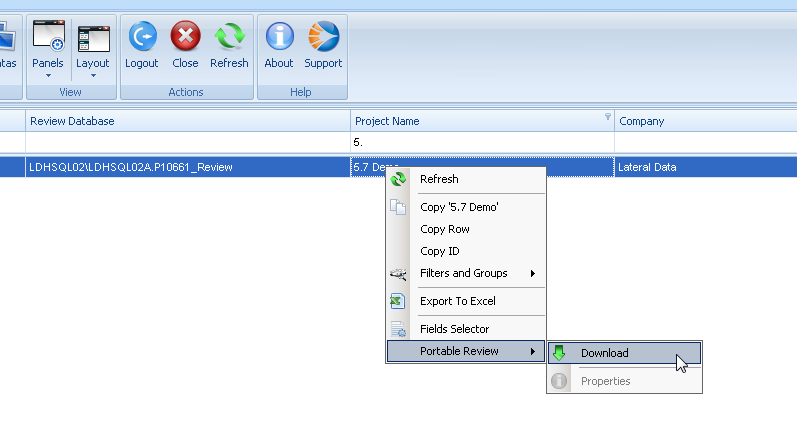
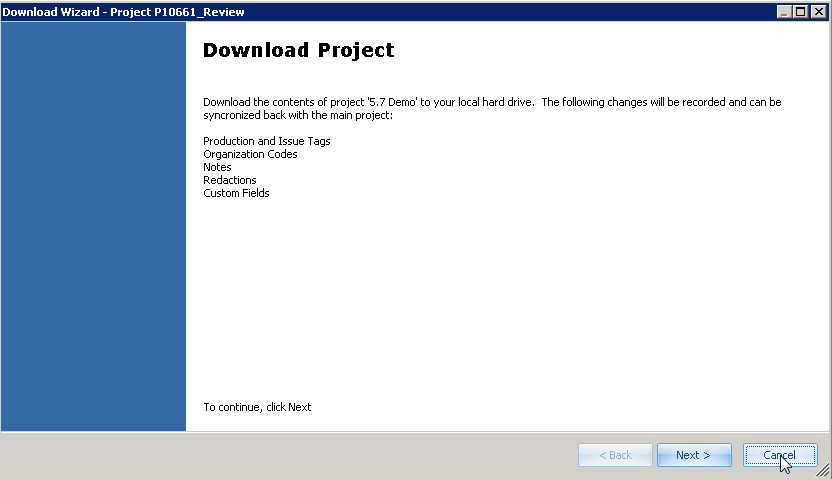
- This will connect the user to the local database engine and launch the Portable Download Wizard.
Using the Download Wizard#
Portable Viewpoint will copy the following information from the main database to the local database:
- A copy of every document file
- Advanced tools information for the documents
- Production & Issue Tags
- Organization Codes
- Notes
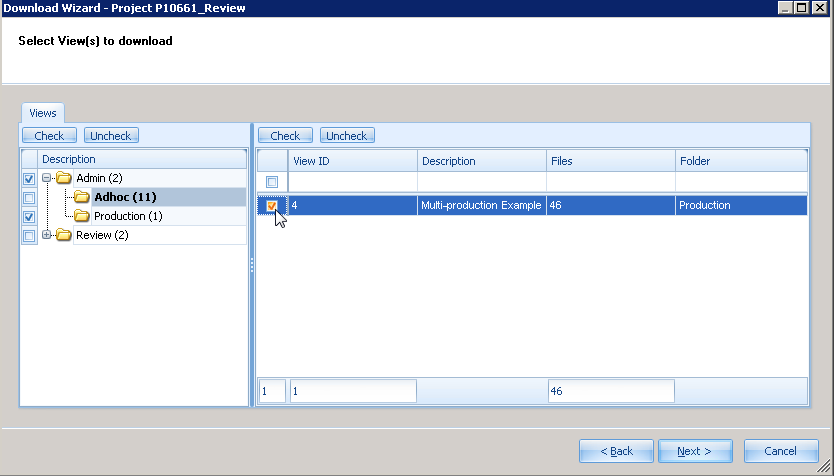
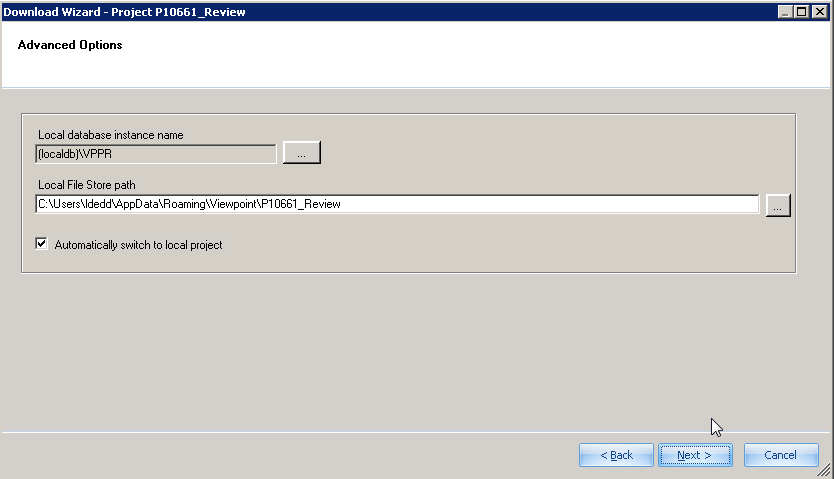
- Local database instance name: Name of the local SQL database instance.
- Local File Store Path: Location on the local computer where the selected Review Project information will be downloaded.
- Automatically switch to local project: This option will automatically populate the necessary credentials into the Viewpoint Review application login screen in order to access the Portable instance of Viewpoint.
- Click Next to continue.
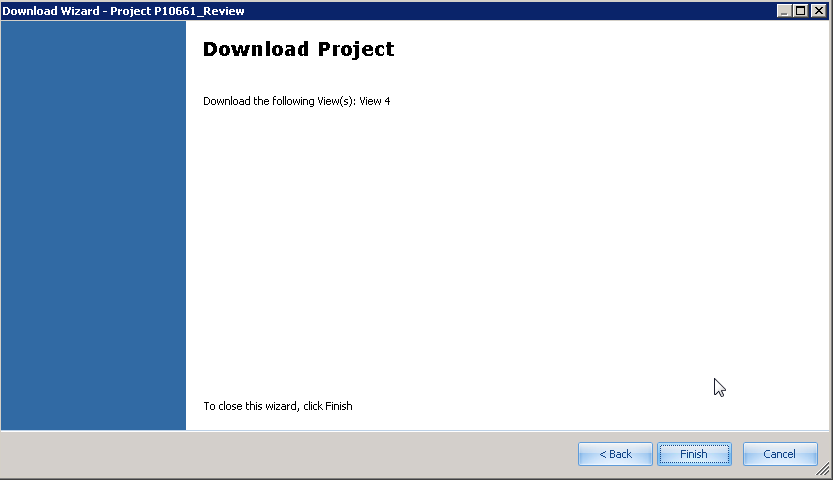
- Click Finish to complete the download wizard and begin downloading the selected View(s) and data to the portable instance of Viewpoint.
- The Download Documents status window will appear.
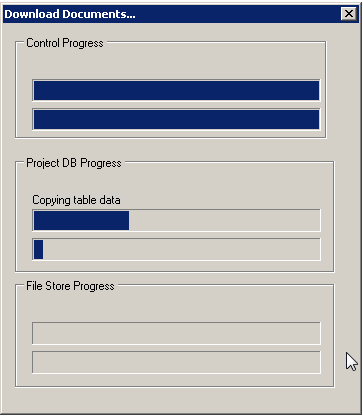
Note: The length of time this step takes will depend on the number of files being downloaded. Also, a warning may be displayed if the application estimates that there will not be enough available storage space for the download, or that the download may fail when the user attempts to download more than 5000 documents.
Using Portable Review#
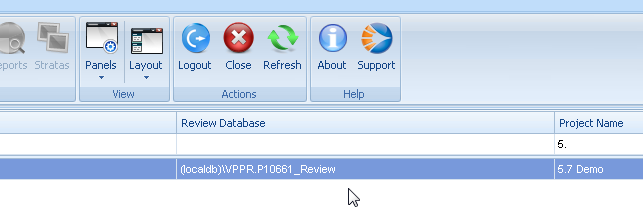
Once a Project has been downloaded, it can be accessed in the Viewpoint Review Application. Accessing the Portable Review instance requires changing the Server to the local instance of SQL:
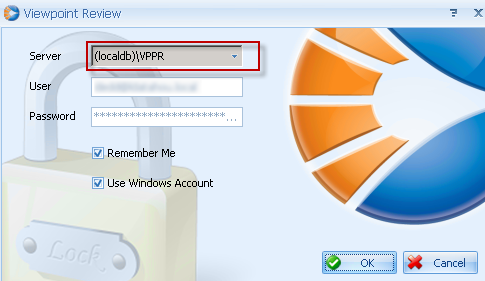
Note: If the user leaves the default checkbox ‘Automatically switch to local project’ checked in the Download Wizard, the local database will be automatically selected in the Viewpoint Review login screen.
Once a user is logged into the local database, they can perform document review and analytics as usual. Changes made in either the main or local database will be resolved when the local database is synchronized with the main database.
- Select the local project
Note: The Source Selector in the local database will only contain the documents downloaded from the main database.
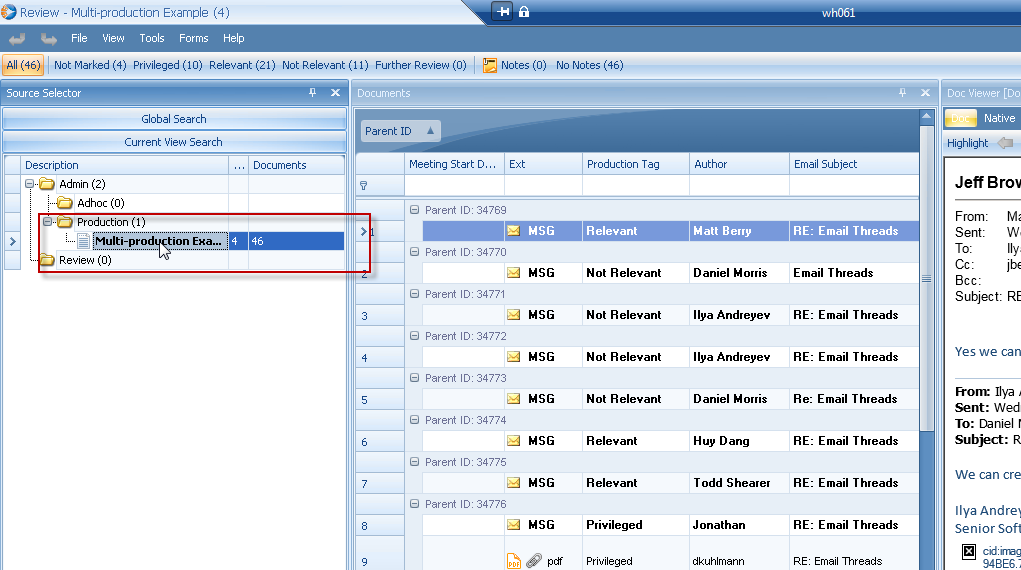
- Once the View has been selected, users may review and apply work product as per a normal, connected Viewpoint session.
Reconnecting and Synchronizing Portable Review#
Work product created or modified during the Portable session may be synchronized with the ‘Main’ version of the database once the user is able to reconnect to the Viewpoint environment.
Reconnecting to the Viewpoint Environment#
- From the Review application Dashboard, in the local Project, right-click on the Project and choose Portable Review and then Log in to Main Database option.
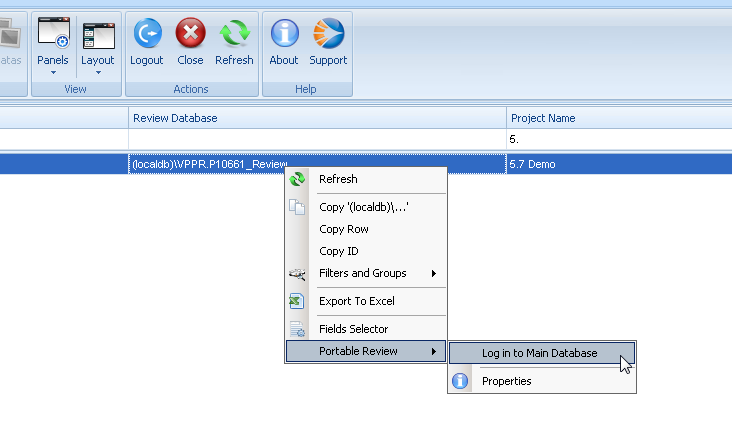
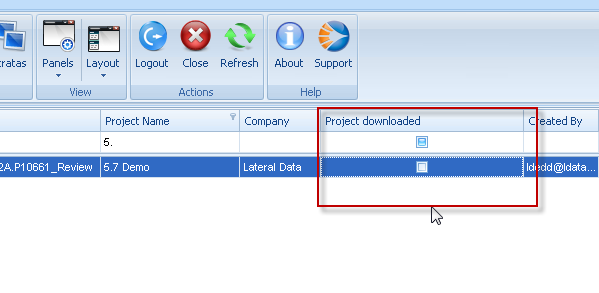
- Once the user is logged back into the Main Database, the Project downloaded column will indicate that there is a portable session of the project downloaded to the local PC.
- Right-click and choose the Upload option from Portable Review.
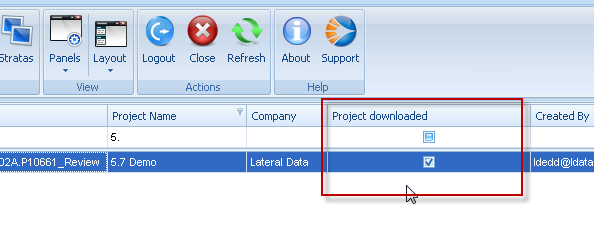
- Click Next to launch the Upload Wizard.
Using the Upload Wizard#
The Upload Wizard will synchronize work product changes from the portable session back to the main database.
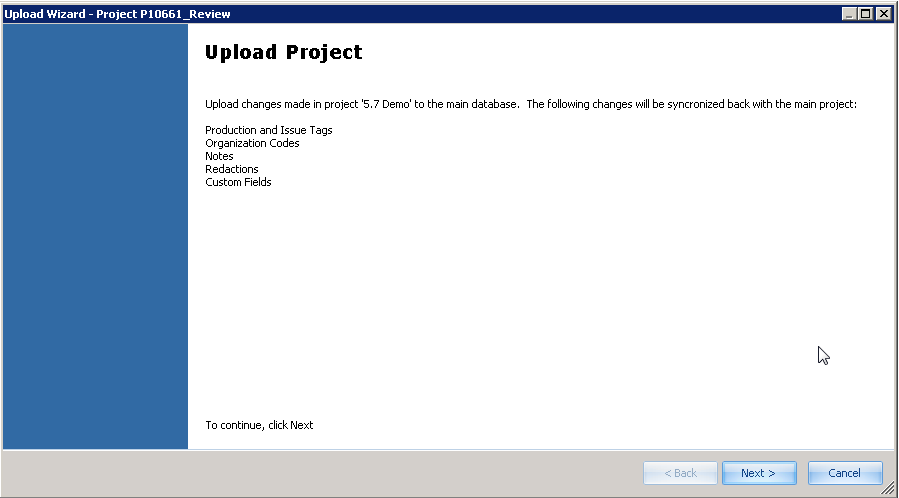
- Click Next to continue.
- Summary of Changes
- During the upload process, Viewpoint will identify any documents containing work product discrepancies between the local and main database. Users may approve or reject changes using the panels provided.
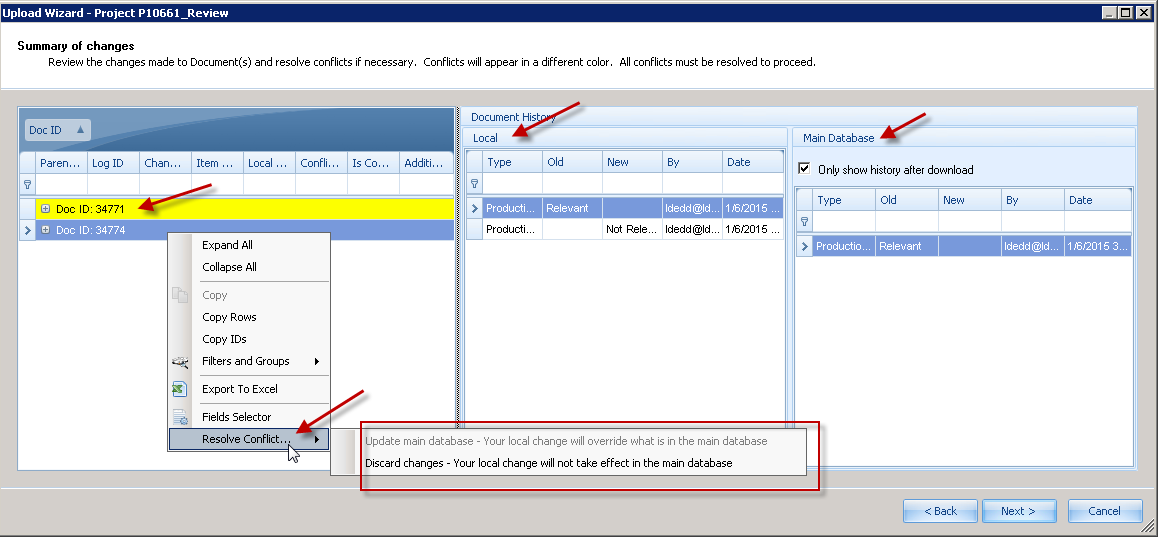
- Left Panel: Displays a list of all documents containing work product discrepancies.
- Middle Panel: Displays work product state of the document in the local database.
- Right Panel: Displays the work product state of the document in the main database.
- Only show history after download checkbox: This option will only show changes to the document work product after the date that the document was downloaded to the Portable session.
- Resolving Conflicts
- Conflicts may be resolved by right-clicking on the document and choosing one of the following options:
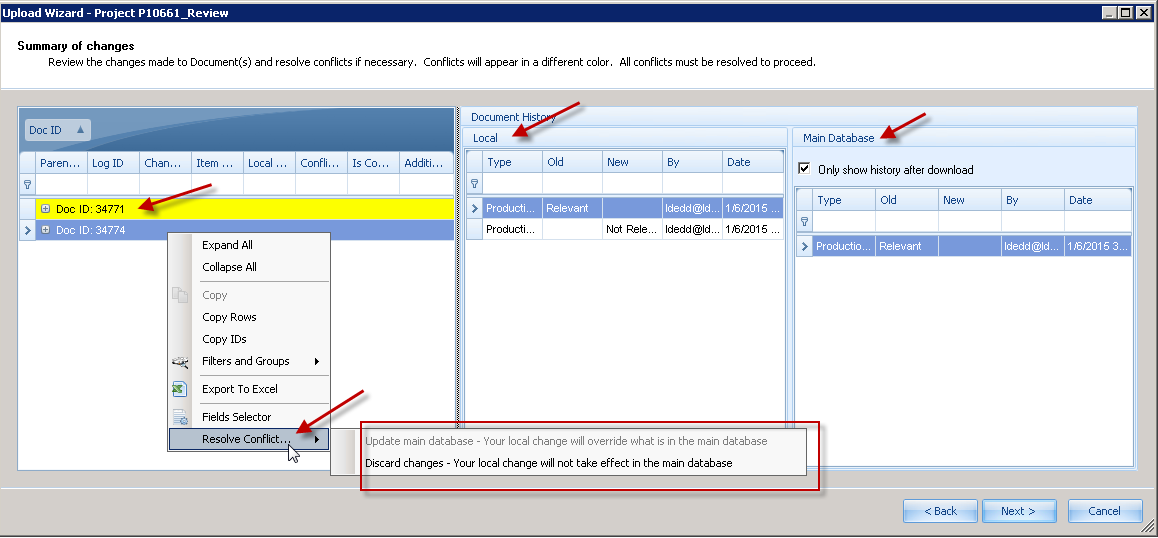
- Update main database: Apply work product state of a document from the local database to the main database, overwriting or appending the main database values.
- Discard changes: The work product state of the document in the local database will be discarded in favor of the work product state of the document in the main database.
- Once all conflicts are resolved, click Next.
- Click Finish to complete the upload.
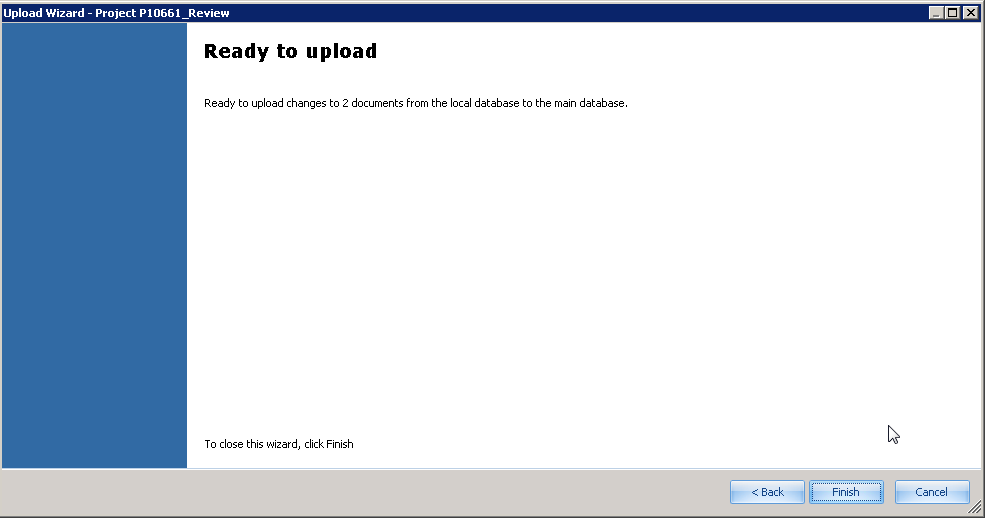
- The local database will be synced back to the main database with any conflicts resolved, and the Project downloaded field will be automatically unchecked.